How to move from Mailchimp to MailerLite: what actually carries over (tested)
Disclosure: This article may contain affiliate links. We may earn a commission at no extra cost to you. Our findings are based on independent testing.
What our test found — before you start
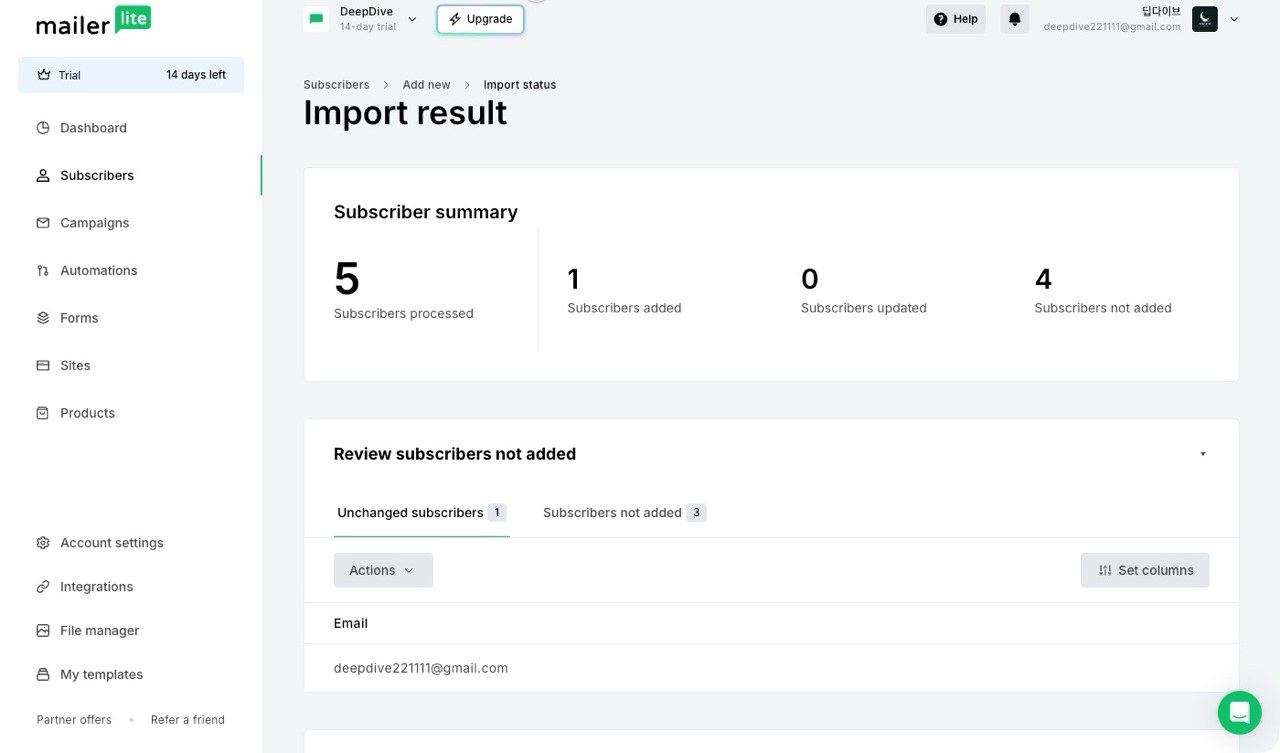
- 3 test addresses were rejected as “suspiciously formatted.” They were Gmail plus-addresses (name+tag@gmail.com). Rejected addresses can be fixed in the import results screen — check the “not added” list before you assume everyone arrived.
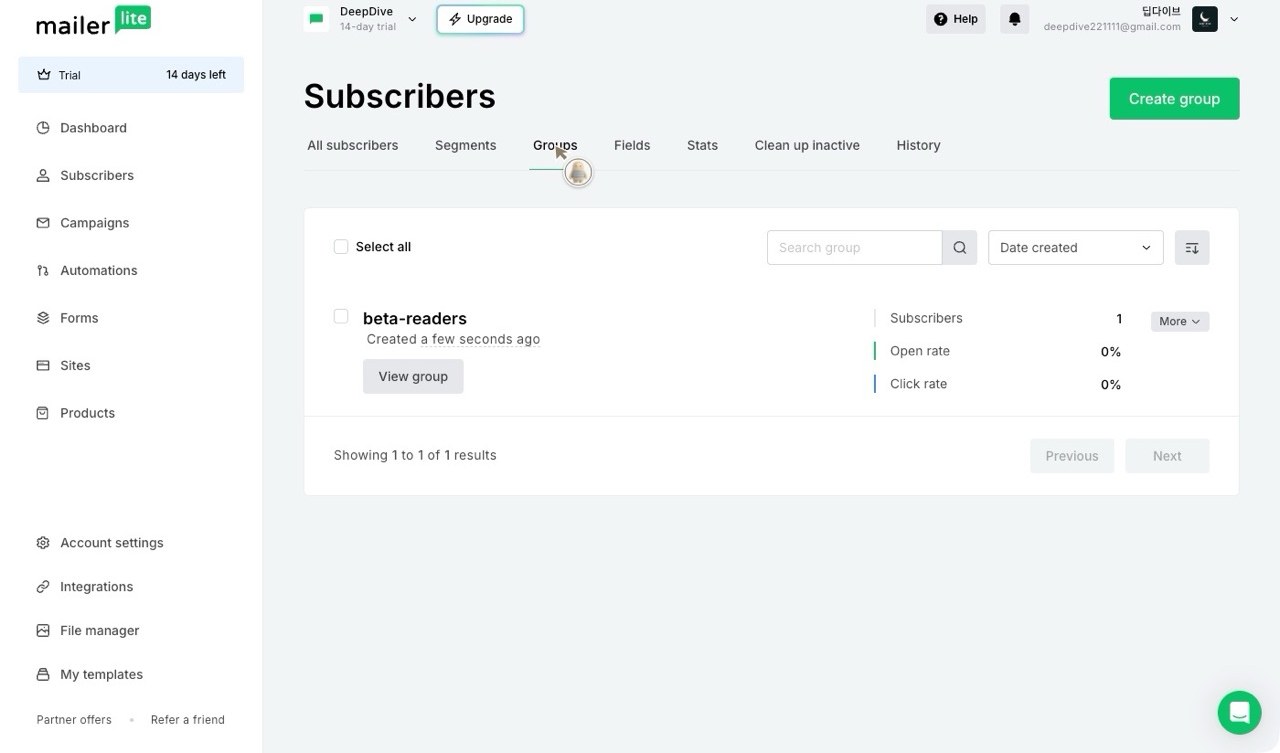
- Mailchimp tags became MailerLite groups automatically, with the same names.
- The audience itself did not become a group. Its subscribers merged into the main pool — MailerLite’s documentation says the importer can group by audience. Ours didn’t.
- Re-syncing added only the new contact. No duplicates.
- Not tested yet: large lists, complex custom fields, segments.
We tested the migration with real accounts
On November 3, 2026, we used MailerLite’s built-in importer to move a small test audience from a Mailchimp Free account to a new MailerLite account. Then we checked the imported contacts, field mappings, groups and re-sync results against the original Mailchimp data.
Three test addresses were rejected, and one audience-related result differed from what MailerLite’s documentation led us to expect. This is a small-scale test, not a guarantee of how every migration will behave — so throughout this guide we separate what we observed ourselves from what MailerLite documents.
- Tested by PortMyMail: name-field mapping, tag-to-group conversion, the address rejection below, and a re-sync after adding a contact.
- Documented by MailerLite (not separately tested): segment compatibility rules, status handling, duplicate-overwrite behavior.
- Not tested: large lists, complex custom fields, and changes to existing contacts during re-sync.
The test in numbers
| Test metric | Result |
|---|---|
| Test audience at first import | 4 contacts (3 seeded test contacts + the account owner) |
| Rejected on the first pass | 3 — Gmail plus-address aliases, flagged “Suspicious formatted email” |
| After fixing the addresses in the results screen | 4 of 4 imported |
| Groups created | 1 (beta-readers, from a Mailchimp tag) |
| Re-sync after adding 1 contact in Mailchimp | 1 added, 0 updated, 0 duplicated |
| Test date | November 3, 2026 |
What carries over, and what does not
Here’s what transferred in our test, along with the limitations documented by MailerLite.
Comes across:
- Subscriber email addresses and their status (subscribed contacts)
- Standard name fields — First Name and Last Name transferred correctly in our test
- Tags, which become MailerLite groups
Comes across with conditions (documented by MailerLite):
- Segments — only static, field-based segments are recreated. Segments built on engagement history, e-commerce data, or address/birthday filters are not.
- Unsubscribed and unconfirmed contacts — left behind by default; you have to opt in on the status step.
Does not come across:
- Campaigns, templates, forms, landing pages and automation workflows. The importer moves subscriber data, not your sending history or your journeys. Plan to rebuild the rest by hand — this guide covers the subscriber move, and flags where the follow-up work sits.
Step 1: Connect Mailchimp
In MailerLite, go to Subscribers → Add subscribers → Import from Mailchimp. You can connect two ways: sign in with your Mailchimp credentials, or paste a Mailchimp API key.
We used the API key route. One thing worth knowing if you are on Mailchimp’s free plan: free accounts can still create API keys (Profile icon → Profile → Extras → API keys). The connection persists, so later syncs offer “Sync again” without re-entering the key.
Step 2: Pick your lists
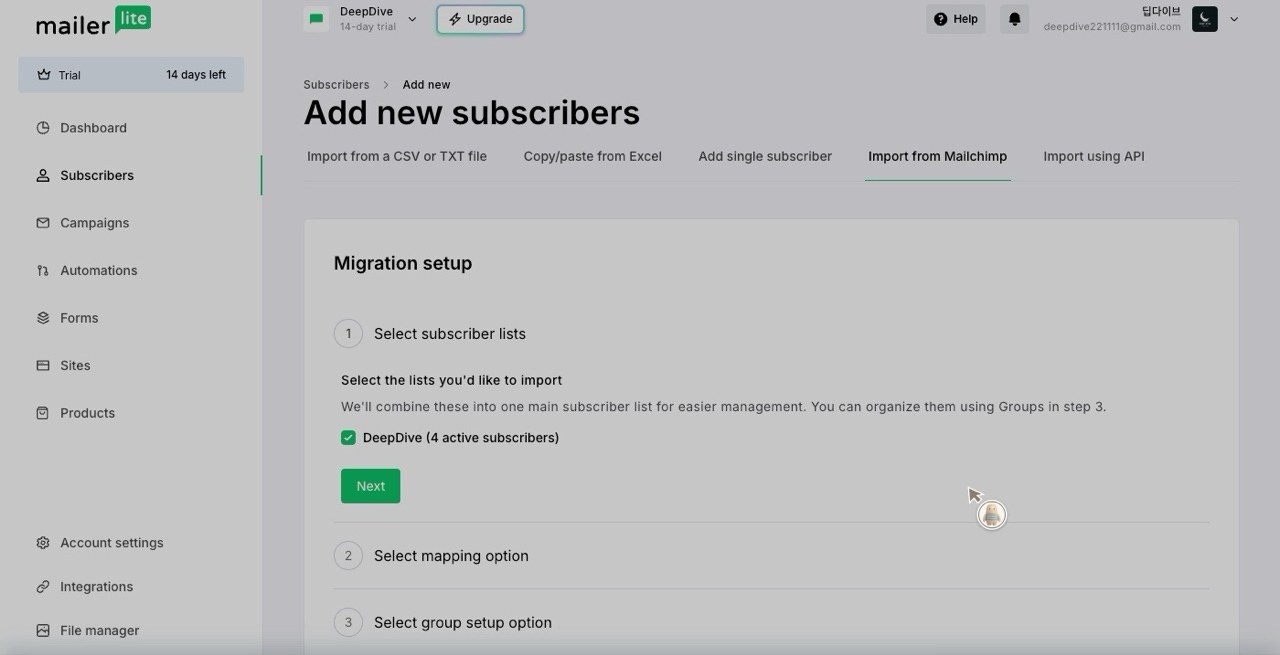
MailerLite merges every audience you select into a single main subscriber list; organization is meant to happen through groups in the next steps instead of separate lists. Our test used one audience. If you run several Mailchimp audiences, this is the step where they would become one pool — check the group results carefully afterwards (see Step 4).
Step 3: Map the fields
The wizard offers automatic mapping (“Map the fields for me”) or manual mapping. We accepted the automatic mapping and checked the result contact by contact: Mailchimp’s First Name and Last Name arrived as MailerLite’s Name, Last name and a combined Full Name, exactly as expected. MailerLite supports custom-field mapping, but we did not seed custom fields in this test — if you rely on them, check each one individually after import rather than trusting the automatic suggestion.
Step 4: What happened to Mailchimp tags and audiences
You can create a group for every list and tag, or put everyone in one group. We chose per-tag groups, and our Mailchimp tag “beta-readers” did become a MailerLite group with the right subscriber in it.
In our test, the Mailchimp tag became a MailerLite group, but we could not find a separate group for the DeepDive audience after the import — its subscribers simply joined the main pool. This differs from MailerLite’s documentation, which says the importer can create groups for both lists and tags. We recommend checking the imported groups before relying on audience-level separation. If your Mailchimp setup uses audiences to separate brands or languages, rebuild that separation with tags before you migrate, or plan to sort subscribers after the import.
Step 5: Segments and statuses
This section follows MailerLite’s documentation — we did not migrate segments in this test. Segments are recreated only when they are static and field-based. Anything built from campaign activity, purchase history or location/birthday filters is not recreated. Check your segment list after migrating rather than assuming it survived.
Unsubscribed and unconfirmed contacts are excluded unless you tick the box to include them. For most senders that default is right; unsubscribed contacts should not silently reactivate on a new platform.
Step 6: Duplicates
If a subscriber already exists in MailerLite, the default is “update missing info only” — blank fields get filled, existing data stays. The alternative, “overwrite all fields”, can erase data with blank values, and the wizard itself warns about this on screen. Keep the default unless you have a specific reason.
Three findings from our migration test
Three Gmail plus-address aliases were rejected in our test. Test contacts like name+reader1@gmail.com were refused with the reason “Suspicious formatted email” — all three of them. We have not confirmed whether this affects all plus-addressed emails or only certain address patterns. The rejected rows can be fixed in the import results screen: each has an Edit action, and correcting the address adds the subscriber on the spot. But before changing a real subscriber’s address, verify the correct destination and preserve their subscription preferences. After any migration, check the “not added” list before you assume everyone arrived.
The account owner’s address came along. In our test, the Mailchimp account owner’s email address was also present in the audience, so it was imported like any other contact. Check your audience before migrating if you want to exclude internal or test addresses.
Re-syncing added only the new contact. We added a new contact in Mailchimp and ran “Sync again”: one newly added contact was imported, and the existing records were reported as unchanged. MailerLite also documents re-syncing as a way to bring across updated subscriber information, but we did not separately test changes to existing fields, tags or subscription statuses. Even so, staged migration looks practical: move the list, test MailerLite with a small campaign, then sync again before you fully switch.
Before you switch: a short checklist
- Export a CSV backup from Mailchimp anyway. The importer is good; a backup is cheap insurance.
- Rebuild audience-level separation as tags first, if you use multiple audiences.
- List your segments and mark which ones are static — per MailerLite’s documentation, those are the only ones that survive.
- Confirm that subscription consent and unsubscribe statuses carry over the way you expect; do not let a migration quietly reactivate anyone.
- Inventory your automations, signup forms and templates in Mailchimp before you move — none of them migrate, and you will rebuild them in MailerLite.
- Reconnect your website signup forms and any external integrations to MailerLite, and pause the old Mailchimp automations so subscribers do not get sent the same email twice during the switch.
- After the import, open the “not added” report and fix rejected addresses.
- Authenticate your sending domain in MailerLite (SPF/DKIM), then send a small test campaign and check it actually lands before your first real send.
The bottom line
The Mailchimp-to-MailerLite importer did the core job well in our test: name fields mapped accurately, the tag landed as a group, and the re-sync behaved incrementally. Some limitations are documented, while others became apparent only during our test — audiences flattening into one pool, plus-addressed subscribers bouncing off a format check. None of those is a reason not to switch. All of them are reasons to spend twenty minutes preparing before you click Import.
If cost is part of the reason you are moving, see our MailerLite vs Mailchimp pricing comparison — checked against both pricing pages on the same day as this test.
Tested November 3, 2026, on a Mailchimp Free account and a new MailerLite trial account, with a small test audience. Interfaces and plan terms change; the date above is the last verified date for the steps in this guide.