Mailchimp Automations Don’t Move to MailerLite: Rebuilt in 25 Minutes, Step by Step
Disclosure: This article may contain affiliate links. We may earn a commission at no extra cost to you. Our findings are based on independent testing.
Tested November 4, 2026 (MailerLite trial account, small test list). We rebuilt a two-email welcome series with a delay, a group-membership condition and a signup form, and timed the work: 20 minutes 26 seconds from opening the workflow builder to the first welcome email arriving in the inbox. The second email’s arrival, 11 minutes later, was observed after the clock stopped. Not tested yet: the automation limits of a free Mailchimp account, and whether MailerLite’s e-commerce triggers fire without a connected store.
The short answer to the question in most switchers’ heads: no, your Mailchimp automations do not transfer. MailerLite’s importer is explicit about its scope. The Mailchimp migration panel offers exactly two things: connect your account, and sync subscribers, including tags. There is no option for journeys, customer journeys, classic automations, forms or templates, because the tool does not move them. What carries over is covered in our migration guide; this article is about the part you have to redo by hand, and how long that actually takes.
What we rebuilt
To test the rebuilding process, we created a representative welcome workflow in MailerLite rather than attempting to reproduce a complex production Mailchimp journey. It is the standard shape most small lists are afraid of losing:
- A workflow triggered when a subscriber joins a group (our test group, recreated from a Mailchimp tag during the import)
- Email 1: a short welcome message
- A condition step: group members continue down the main path
- A 10-minute delay (short, so we could watch the whole series finish in one session)
- Email 2: a follow-up pointing at the migration checklist
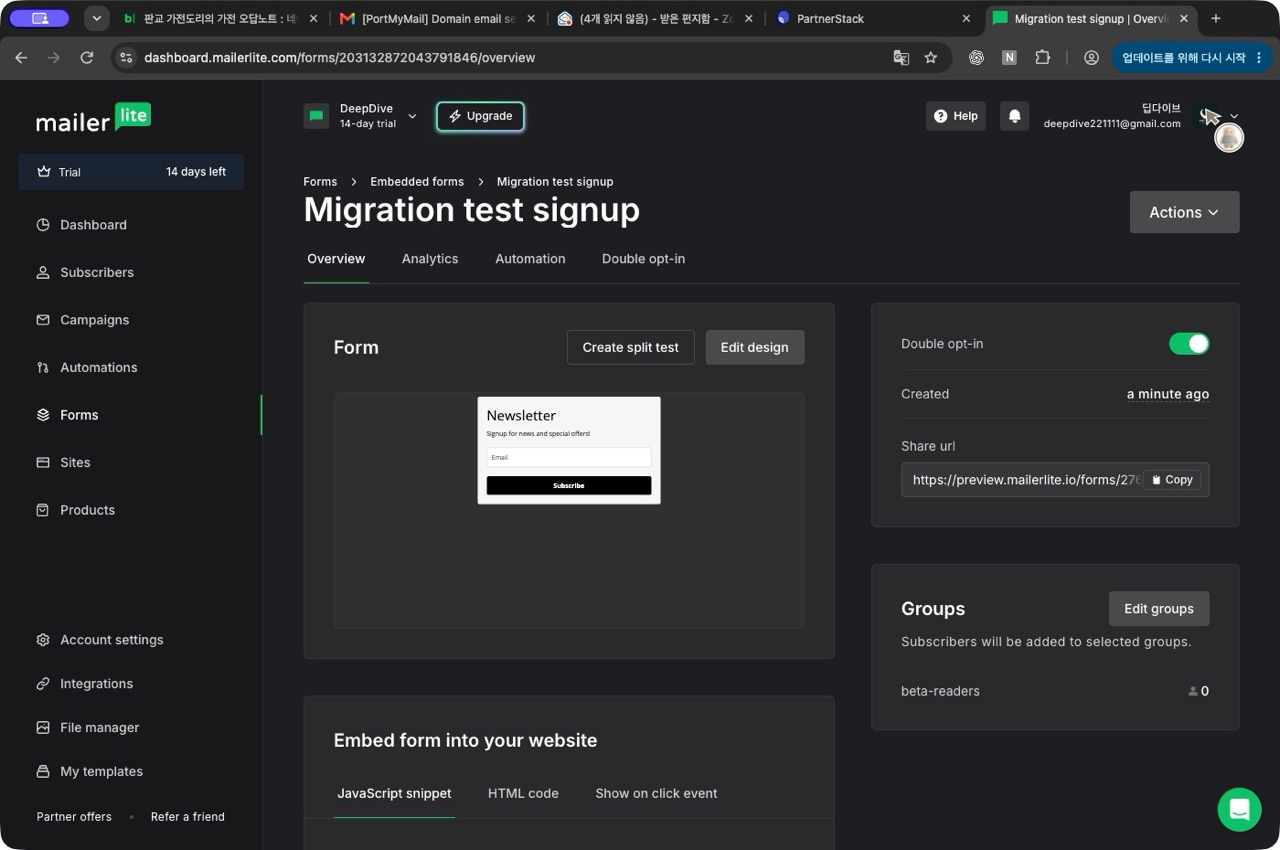
- An embedded signup form feeding the same group, with double opt-in on
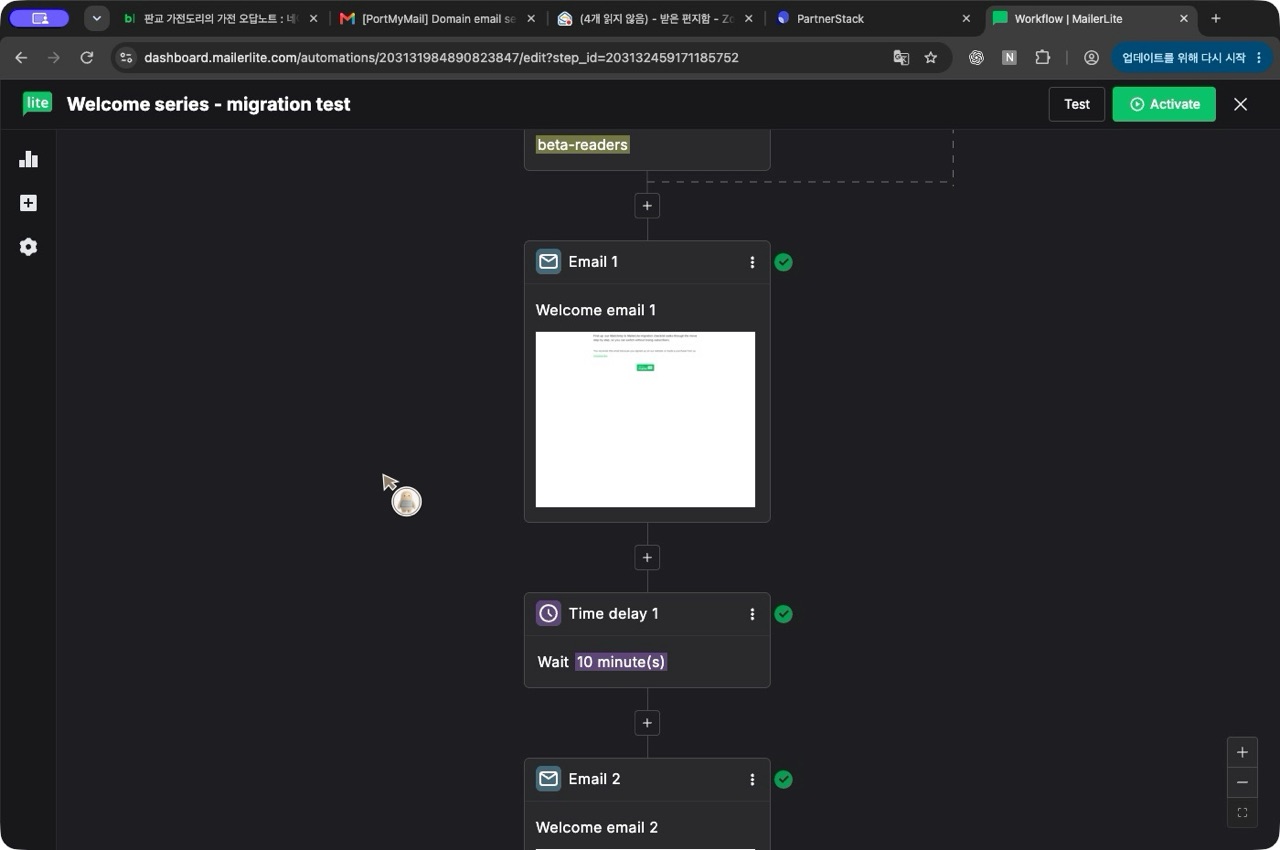
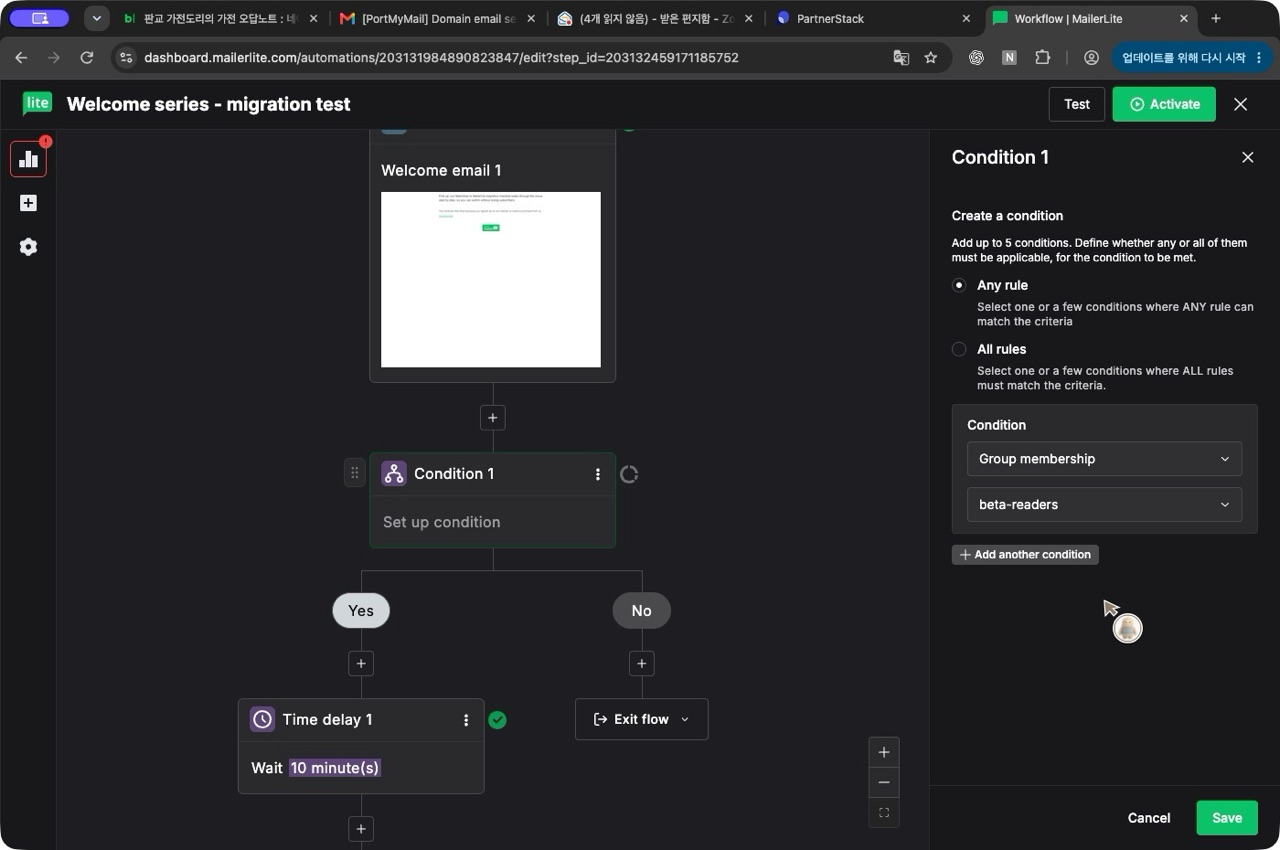
The build order in the workflow builder was: trigger, email 1, condition, then the delay and email 2 on the condition’s Yes branch. The No branch exits the flow.
The rebuild, step by step
We timed each stage from the session log, from the first workflow screen to the moment the welcome email landed in the inbox. The clock includes a false start: the first draft of email 1 came out garbled and had to be deleted and retyped, which cost a few of the minutes below. We count it anyway. A rebuild you do at your desk will have its own version of that.
| Stage | Time (from the session log) |
|---|---|
| Workflow, trigger and email 1 | 6:35 |
| Delay step and email 2 | 3:22 |
| Condition branch | 3:35 |
| Signup form and activation | 3:13 |
| End-to-end test (first email) | 3:41 |
| Total measured | 20:26 |
What the clock does not include: waiting for email 2. The delay was 10 minutes by design, and we confirmed its arrival 11 minutes after email 1, after the timed session had ended. One note on the title of this article: we round our measured times up, never down, when a number goes in a headline. Twenty minutes 26 seconds of measured work is “rebuilt in 25 minutes” here, and the same rule applies to every timing we publish. How we test email tool migrations describes the rest of our measurement rules.
Choosing the trigger. In our trial account, the workflow builder’s trigger list showed 13 options across three families: subscriber activity, dates and events, and e-commerce. The one that matches a Mailchimp signup journey is “Subscriber joins group(s)”. Because our import had already turned the Mailchimp tag into a group, the trigger had something concrete to attach to. One caution: the e-commerce section showed five entries (abandoned cart, abandoned checkout and purchase-based options among them) even though our test account has no store connected. We did not verify whether they can actually fire in that state, so treat their presence as a menu entry, not a promise.
Delays and conditions. The delay step accepts minutes, hours, days, weeks and months, and can also pin a send to a specific time, weekday or date. The condition step offers five kinds of test: campaign activity, workflow activity, custom fields, group membership and segment membership. A condition step creates separate Yes and No branches. In our test, we placed the delay and second email on the Yes branch, and the No branch exits the flow. When building your own workflow, check which branch each subsequent step belongs to.
The form is a separate rebuild, and double opt-in hides
The signup form is not part of the workflow builder; it is its own object, assigned to the same group. Building it took about three minutes. We tested it through the form’s hosted share link; installing the embed code on an external website was outside the scope of this test. The finding worth writing down is where the double opt-in switch lives. It is not in the form editor. The editor’s settings cover privacy policy, a confirmation checkbox, a hidden segmentation field, marketing permissions, interest groups, a custom success page and reCAPTCHA, but not opt-in. The double opt-in toggle sits on the form’s overview screen, and it is on by default. If you go looking for it in the editor and conclude it does not exist, you will not be the first.
End to end: what the test signup showed
We submitted the form with a fresh test address. Three things happened, in this order, and each one matters for a real migration:
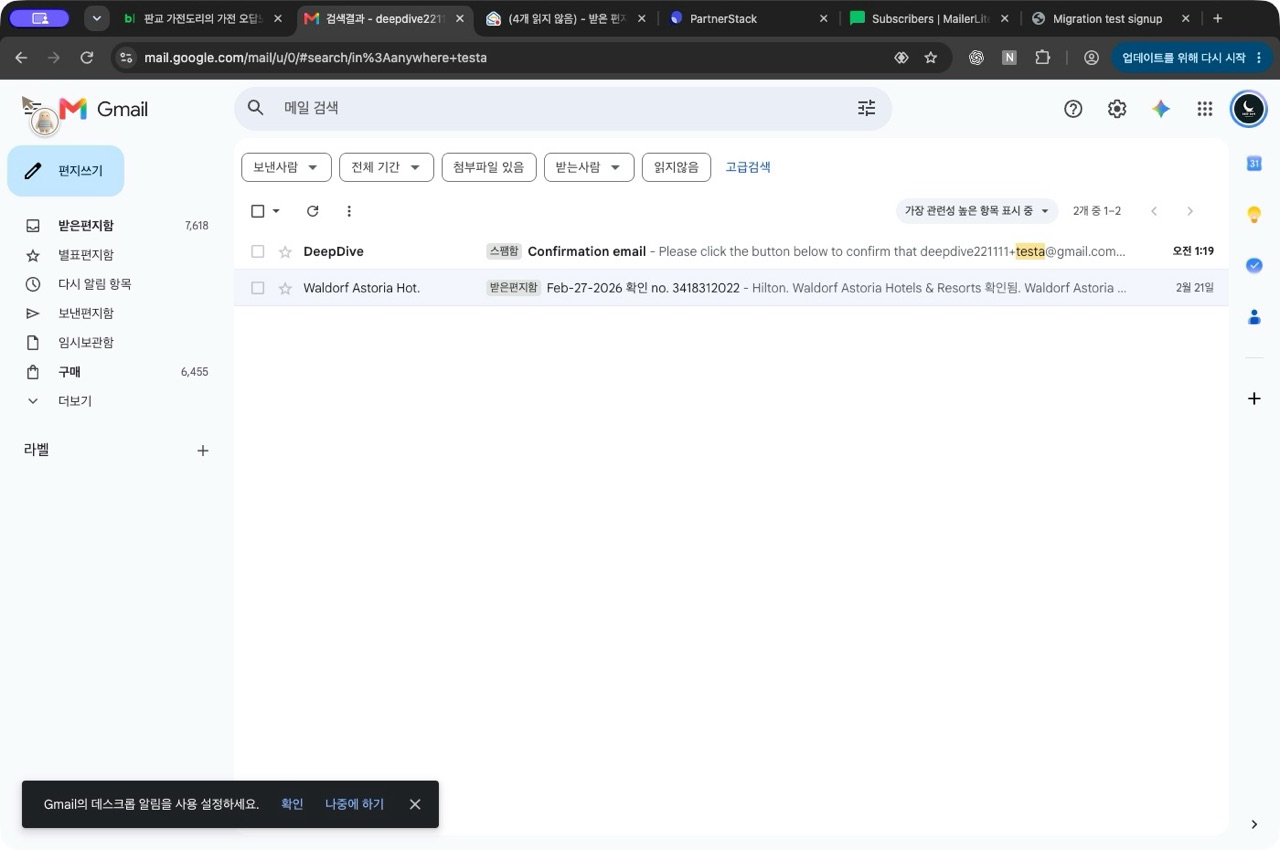
- The confirmation email went to spam. It arrived within the same minute, but Gmail filed it under spam, showing its standard note that the message resembled mail previously confirmed as spam. At the time, the account was sending from an unauthenticated Gmail address through MailerLite’s sending domain. We did not inspect the message headers or isolate the cause of the placement, so treat that setup as context, not a proven cause. What is certain is the observation itself: the first email a new subscriber sees from the new platform landed in the folder nobody reads.
- The welcome email landed in the inbox. After we clicked the confirmation, email 1 arrived in the same minute, in the inbox, with the text exactly as built. Two messages from the same test setup, two different placements. Deliverability on a new setup is uneven in ways a dashboard will not show you; send yourself the full sequence before you announce the move.
- The series completed on schedule. Email 2 arrived 11 minutes after email 1: the 10-minute delay, plus about a minute of processing. Our test subscriber met the group-membership condition, followed the Yes branch, and received both emails. We did not separately test the No branch, or a subscriber whose group membership changed during the workflow.
One more default worth knowing before you activate: the activation dialog asks whether existing subscribers should enter the workflow, and in our test it was set to new subscribers only. Existing subscribers can also be included during activation, so this is a decision, not a limitation. For a welcome series, decide explicitly whether imported subscribers should enter the workflow, and do not click past the dialog on autopilot.
MailerLite recommends sending from an authenticated custom domain rather than a public-domain address. Before real subscribers touch the new form, authenticate your sending domain, then test both the confirmation email and the automation emails yourself.
What this means for a real migration
We rebuilt this two-email welcome series and its signup form in 20 minutes 26 seconds of recorded time, which we round up to 25 minutes for the headline. Your rebuild may take longer depending on the content, workflow complexity, and account setup. A real account usually has more than one journey, and the time is in the inventory, not the builder. Our migration checklist starts by listing every active automation, form and template before anything moves, because the rebuild queue is whatever that list turns out to be. The practical order is: authenticate the domain, rebuild the forms, rebuild the automations from the inventory, and run your own address through every sequence. Build and test the MailerLite workflows with test subscribers while your existing Mailchimp automations remain active. At cutover, coordinate the old workflow shutdown, the form and integration changes, and the new workflow activation, so subscribers who qualify in both platforms do not receive duplicate messages, and none fall between the two.
What we did not test: how many automations a free Mailchimp account can hold in the first place (worth knowing before you count your rebuild queue), whether the e-commerce triggers fire without a connected store, and complex multi-branch journeys. More complex journeys may require additional setup and verification. We have not measured a multi-branch rebuild, so we cannot estimate its duration from this test.
The bottom line
Automations are the part of a Mailchimp account that does not pack a suitcase. The importer moves people, not the machinery that talks to them. The good news from this test is that the machinery is quick to rebuild once you know where things live: about 20 minutes of hands-on work for a complete welcome series, form included, verified end to end. Do the domain authentication first, check the opt-in toggle on the overview screen, and test with your own address before your subscribers find the gaps for you.
If you are still deciding whether the move itself is worth it, the full transfer picture, including what does carry over, is in our step-by-step migration guide.
Based on a hands-on rebuild run on November 4, 2026, on a MailerLite trial account, using a workflow and form built from scratch for this test. Times are from the session log; the measurement ran from opening the workflow builder to the first welcome email’s arrival, and the second email’s arrival was observed separately. Interfaces and plan terms change; the test date above is the last verified date for the steps described.